
Overview
Payment Management in Recurio gives store owners complete control over how subscription payments are processed, recorded, and managed. With support for major gateways like Stripe, PayPal, and Square, Recurio ensures secure, automated recurring billing and flexible manual options for special cases.
This guide explains how to configure payment gateways, manage billing settings, and handle successful or failed transactions in Recurio.
Supported Payment Gateways
Recurio integrates seamlessly with WooCommerce gateways that support tokenization for secure recurring payments.
✅ Recommended Gateways
- Stripe – Full tokenization and subscription support
- PayPal – Native billing agreements
- Square – Tokenized payment handling
- Authorize.net (CIM) – Secure customer information management
⚠️ Not Recommended
- Cash on Delivery (COD)
- Bank Transfer (BACS)
- Check Payments
- Any offline or non-tokenized methods
💡 Tip: Always use tokenized gateways for recurring billing automation and PCI compliance.
Configuring Payment Gateways
Step 1: Install and Activate the Gateway Plugin
- Go to Plugins → Add New in your WordPress admin.
- Search for your desired gateway (e.g., Stripe or PayPal).
- Click Install Now, then Activate.
Step 2: Configure the Gateway in WooCommerce
- Navigate to WooCommerce → Settings → Payments.
- Click Manage under the chosen gateway.
- Enter your API credentials or sandbox keys.
- Enable the gateway for checkout.
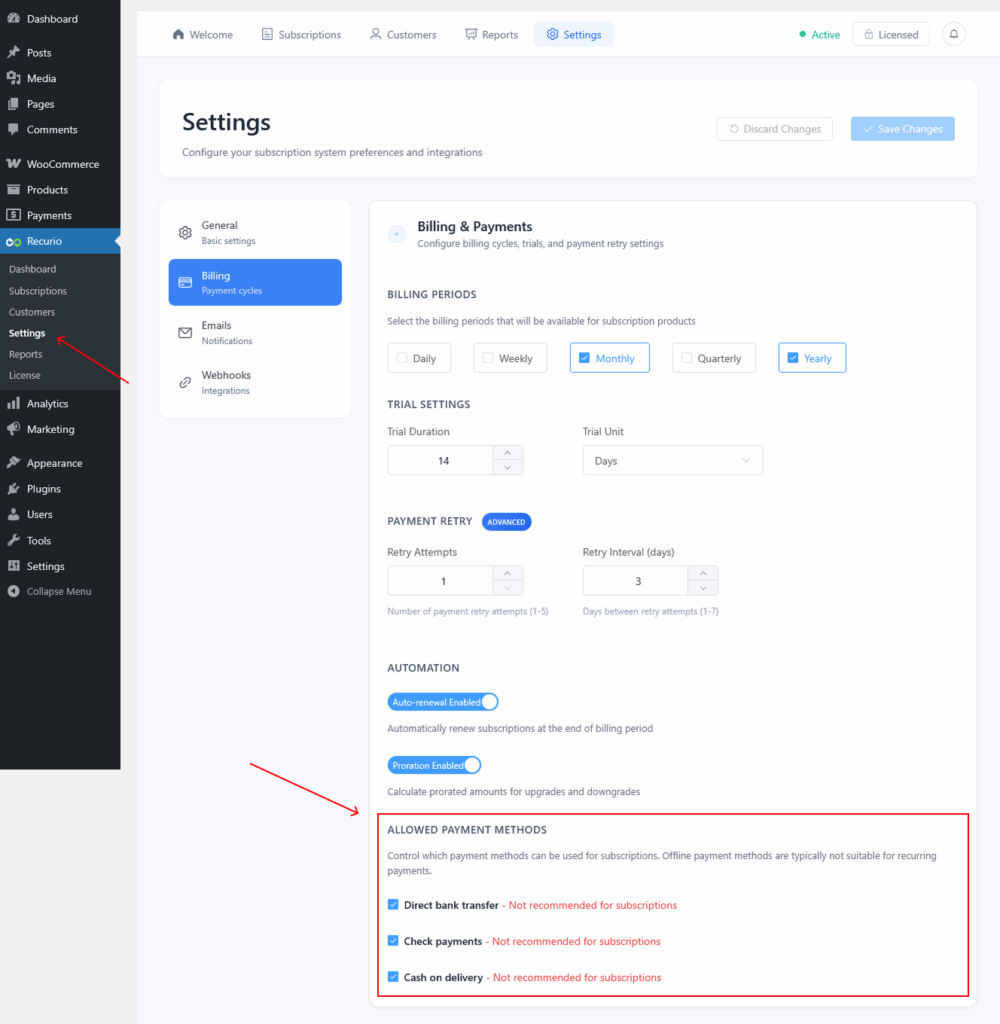
Step 3: Enable Gateway for Subscriptions in Recurio
- Go to Recurio → Settings → Billing.
- Scroll to Allowed Payment Methods.
- Check gateways to allow for subscriptions.
- Save your settings.
Automated Recurring Payments
Recurio automates recurring charges through secure tokens saved at checkout.
How It Works
- Subscription is created → Recurio stores a payment token.
- On renewal date → Cron job runs and processes payments.
- Gateway charges the saved method automatically.
- Payment success or failure is logged and notified.
Failed Payment Handling
Recurio automatically manages failed payments using retry logic.
Free Plan
- Retry Attempts: 1
- Retry Interval: 3 days
- Action After Failure: Subscription cancelled if payment fails again
Pro Plan
- Retry Attempts: 2–5 (configurable)
- Retry Interval: 1–7 days (configurable)
- Advanced Features: Smart retry scheduling, weekend avoidance, customer reminders
Example Retry Schedule (Pro)
- Day 0: Initial payment fails
- Day 3: Retry #1
- Day 6: Retry #2
- Day 9: Retry #3
- Day 12: Cancel if still failed
💡 Pro Tip: Use 3 retries with 3-day intervals to recover up to 60% of failed payments.
Payment Method Management
For Customers
Customers can update payment methods anytime via the Customer Portal:
- Log in and navigate to the Subscriptions tab.
- Select a subscription and click Update Payment Method.
- Choose a saved method or add a new one.
- Confirm changes.
System Actions:
- Updates payment token securely.
- Sends confirmation email.
- Uses updated method for next charge.
For Admins
Admins can update customer payment methods from the dashboard:
- Go to Recurio → Subscriptions → Edit Subscription.
- Select a stored payment token.
- Save changes.
⚠️ Security Note: Full card details are never visible or stored — only secure tokens are referenced.
Troubleshooting Payment Management in Recurio
| Issue | Cause | Solution |
|---|---|---|
| Payment not processed | Cron not running | Enable WP-Cron or set real cron job |
| Subscription active but no charge | Invalid token | Ask customer to re-enter payment info |
| Payment failed repeatedly | Gateway error | Check gateway logs or reauthenticate credentials |
| Manual payments not saving | Missing details | Enter amount and method before saving |
🧾 Check the debug log at
/wp-content/debug.logfor detailed payment processing records.
Best Practices for Payment Management in Recurio
- Always use gateways that support tokenization.
- Test payment flow using sandbox/test mode before launch.
- Enable payment failure notifications for quick recovery.
- Use Recurio Pro for intelligent retry logic and advanced automation.
- Verify cron jobs run regularly to ensure timely renewals.
Conclusion
Payment Management in Recurio makes handling recurring billing easy, secure, and automated. With built-in retry logic, detailed logs, and flexible manual controls, you can confidently manage subscription revenue and ensure smooth, consistent payment operations for your WooCommerce store.