
The Customer Portal is where your customers manage their own subscriptions.
It gives users 24/7 access to view, pause, resume, cancel, and update billing details — reducing support tickets and improving customer satisfaction.
What Is the Customer Portal?
The Recurio Customer Portal is a self-service interface integrated directly into your WooCommerce store.
Customers can securely manage every aspect of their subscriptions without contacting the admin.
Benefits
- 24/7 Self-Service: Customers manage their plans anytime.
- Reduced Support Load: Fewer cancellation and billing queries.
- Improved Retention: Easy pause options prevent permanent cancellations.
- Professional Experience: Seamless integration with WooCommerce.
Enabling the Customer Portal
You can display the portal in two different ways:
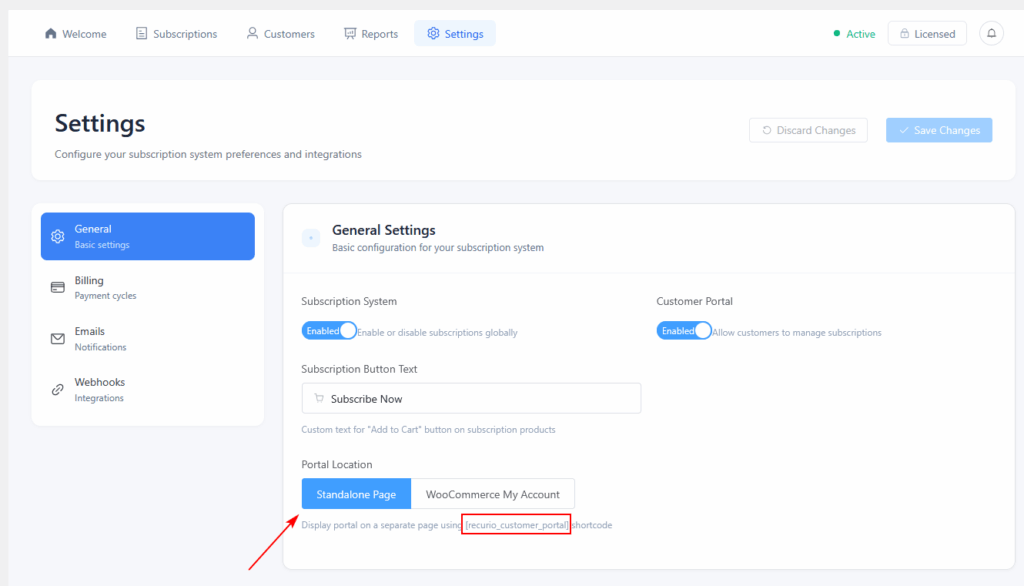
- As a Standalone Page using a shortcode.
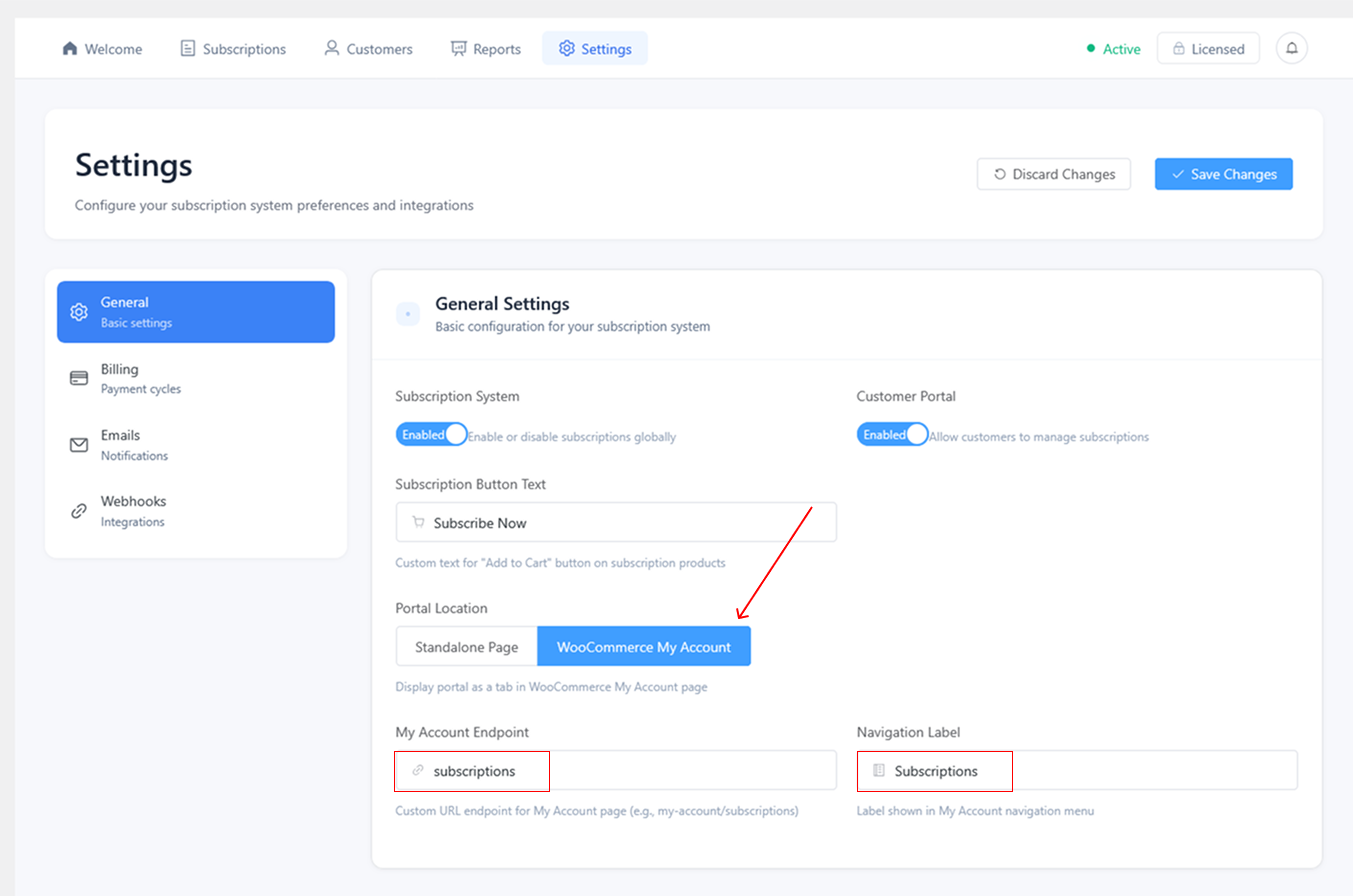
- As a WooCommerce My Account tab.
Both options show the same subscription management interface.
Option 1: Standalone Page (Shortcode)
Steps:
- Go to Pages → Add New in WordPress.
- Enter a title, e.g., “My Subscriptions.”
- In the content editor, paste this shortcode: recurio_customer_portal
- Click Publish.
Option 2: WooCommerce My Account Tab
Steps:
- Go to Recurio → Settings → General.
- Set Portal Location → WooCommerce My Account.
- (Optional) Edit the Endpoint and Menu Label.
- Click Save Changes.
- Go to Settings → Permalinks → Save Changes (to refresh URL routing).
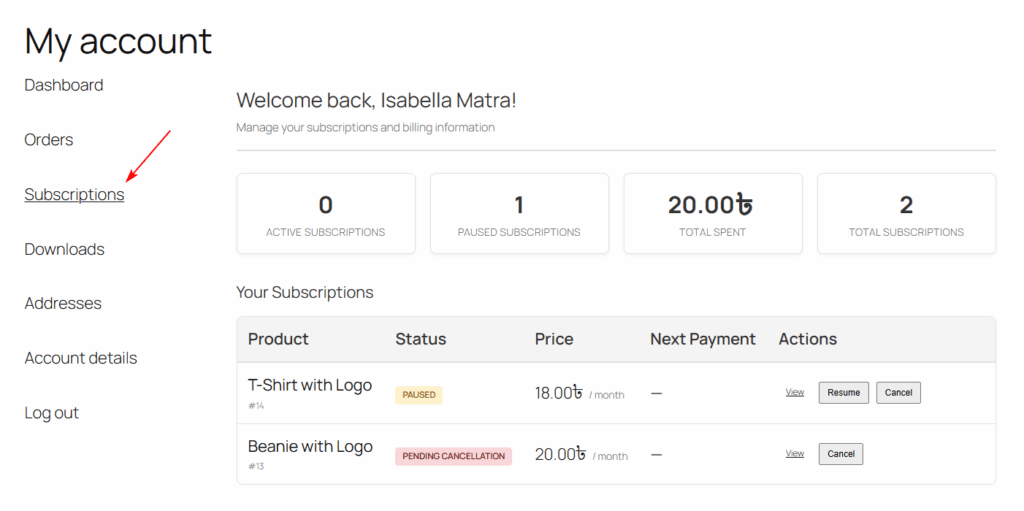
The Subscriptions tab will now appear under My Account automatically.
Customer Portal Layout
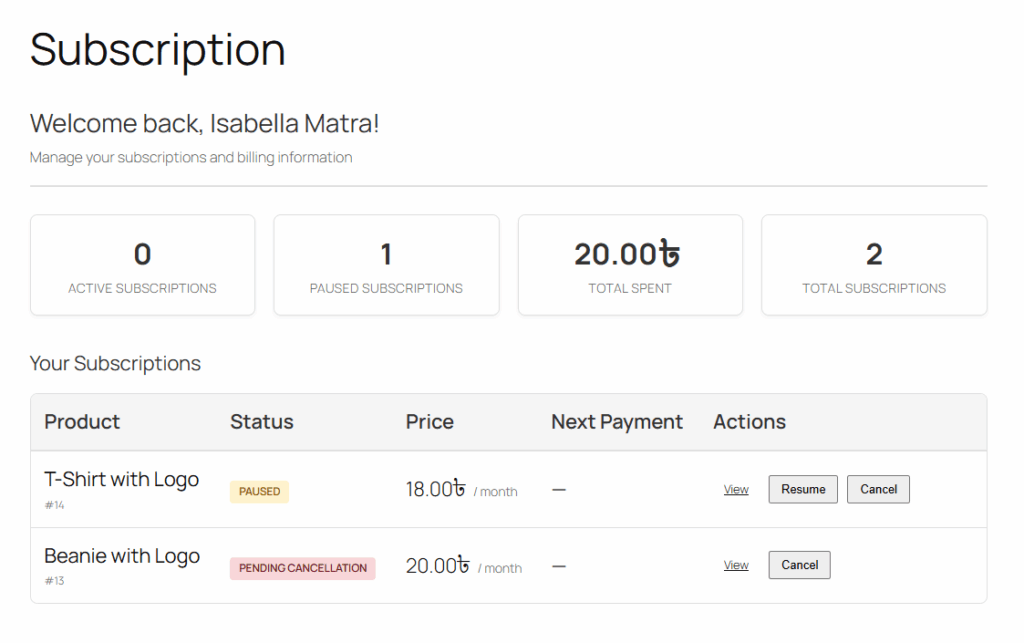
When a customer logs in and opens the portal, they’ll see three key sections:
1️Dashboard Summary
Displays quick statistics about their account:
- Active Subscriptions
- Paused Subscriptions
- Total Spent
- All-Time Subscriptions
Helps customers quickly understand their account status.
Subscription List Table
Displays all subscriptions (Active, Paused, Cancelled, etc.).
Columns:
| Field | Description |
|---|---|
| Product | Subscribed product name |
| Subscription ID | Unique Recurio ID |
| Status | Active / Paused / Cancelled / Expired |
| Price | Recurring amount |
| Next Payment Date | When the next renewal occurs |
| Actions | Quick buttons (View, Pause, Resume, Cancel) |
Subscription Detail View
When the customer clicks View, they’ll see:
Subscription Information
- Product name and description
- Billing amount and interval
- Next payment date
- Payment method
- Billing and shipping addresses
Payment History
- List of all payments with date, amount, and status
- Transaction IDs for each payment
Available Actions
- Pause subscription
- Resume subscription
- Cancel subscription
- Update addresses
- Update payment method
Customer Actions Explained
Pause Subscription
Steps:
- Click Pause beside a subscription.
- Read confirmation notice.
- Click Pause Subscription to confirm.
Result:
- Status changes to Paused.
- No billing during paused period.
- Customer receives a “Subscription Paused” email.
Resume Subscription
Steps:
- Click Resume beside a paused subscription.
- Confirm the action.
Result:
- Status changes to Active.
- Next billing date recalculated automatically.
- Customer receives a “Subscription Resumed” email.
Cancel Subscription
Steps:
- Click Cancel beside an active subscription.
- Choose when to cancel:
- Immediately → Ends now.
- At End of Period → Ends after current billing cycle.
- Confirm cancellation.
Result:
- Status changes to Cancelled or Pending Cancellation.
- Customer receives confirmation email.
Cancelled subscriptions cannot be resumed. Customers must purchase again to reactivate.
Update Billing / Shipping Address
Steps:
- Click Edit Billing Address or Edit Shipping Address.
- Enter new address details.
- Click Save Address.
Result:
- Updates saved for both WooCommerce and Recurio.
- Confirmation email sent to customer.
Update Payment Method
Steps:
- Click Update Payment Method.
- Choose from saved payment methods or add a new one.
- Confirm the update.
Result:
- New payment token replaces the old one.
- Next billing will use updated payment method.
Requires a gateway with tokenization (e.g., Stripe, PayPal).
Portal Permissions & Security
- Only logged-in users can access their portal.
- Customers can view only their own subscriptions.
- All updates use secure WooCommerce AJAX requests.
- Sensitive data (payment tokens) is never exposed.
Recurio is fully compatible with GDPR and PCI compliance standards.
Best Practices
- Encourage Pauses over Cancels: Helps retain customers who only need a temporary break.
- Enable Email Notifications: Send automatic pause/resume/cancel confirmations.
- Offer Renewal Reminders: Let customers know before being charged.
- Use Branding Consistently: Match portal visuals to your site theme for seamless UX.
Troubleshooting the Portal
| Issue | Cause | Solution |
|---|---|---|
| Portal page blank | Shortcode typo or portal disabled | Use :recurio_customer_portal and ensure it’s enabled |
| “You must be logged in” message | User not signed in | Customers must log into WordPress before access |
| “Subscriptions” tab missing | Endpoint not saved | Go to Settings → Permalinks → Save Changes |
| Portal data incorrect | WooCommerce cache or conflict | Clear cache and test with default theme |
| Payment method not updating | Non-tokenized gateway | Use Stripe, PayPal, or token-enabled gateways |
Quick Recap
By now, you can:
- Enable the Customer Portal via shortcode or My Account tab
- Let customers pause, resume, cancel, and update subscriptions
- Sync billing/shipping updates with WooCommerce
- Provide a fully branded self-service subscription experience