
The Managing Subscriptions section of Recurio gives you complete control over every customer’s lifecycle — from creation to cancellation.
You can view, edit, pause, resume, and cancel subscriptions, as well as record payments and track all related events in one place.
Accessing the Dashboard
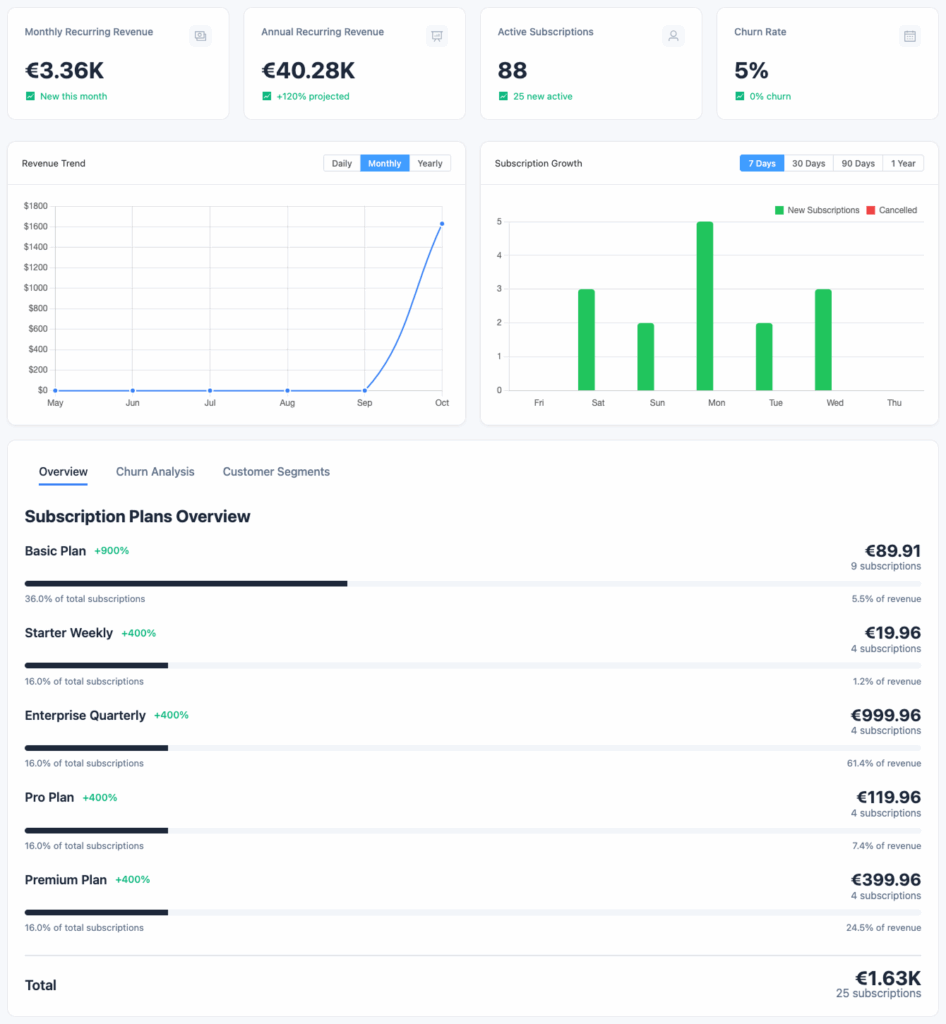
Navigate to: Recurio → Dashboard
You’ll see:
- Total Subscriptions – All-time count
- Active Subscriptions – Currently active
- Monthly Recurring Revenue (MRR) – Normalized monthly revenue
- Annual Recurring Revenue (ARR) – MRR × 12
- Average Revenue Per User (ARPU) – Revenue ÷ active customers
- Customer Lifetime Value (LTV) – Average 24-month value
- Churn Rate – Percentage of cancellations
- Growth Rate – Month-over-month growth
Viewing Subscriptions
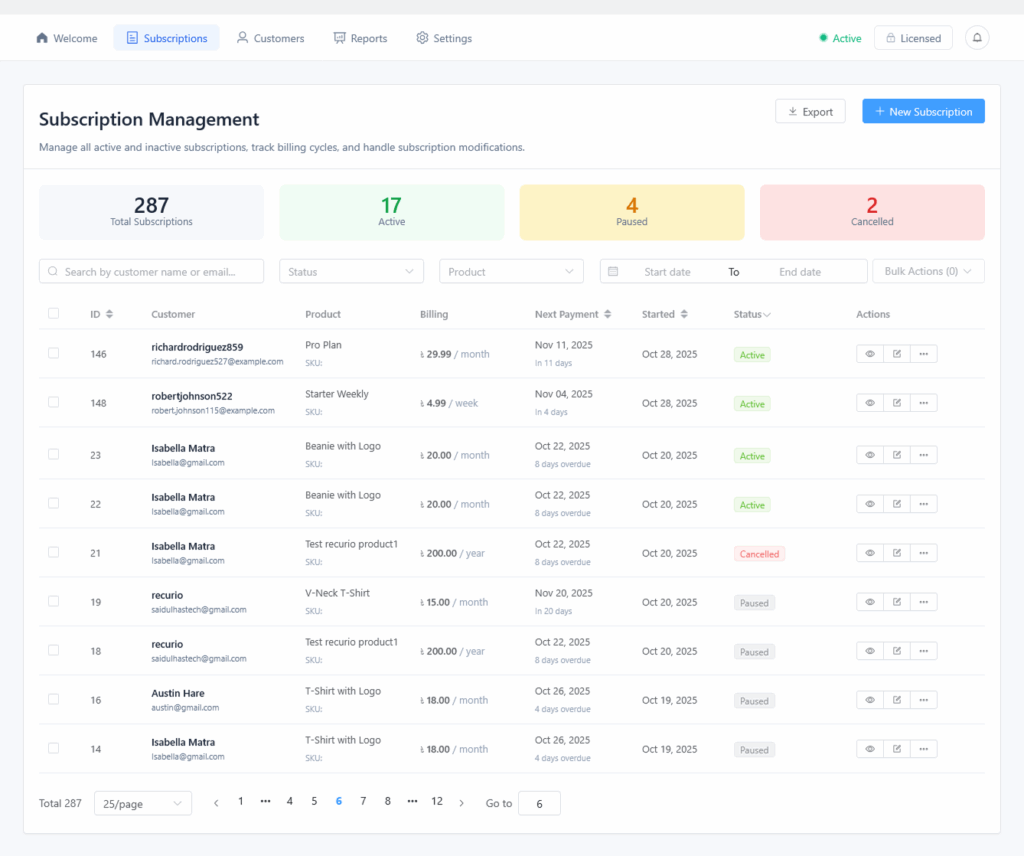
Navigate to: Recurio → Subscriptions
Subscription List
The subscription list shows:
- Customer Name – Who owns the subscription
- Product – What they’re subscribed to
- Status – Current state (active, paused, cancelled, etc.)
- Amount – Billing amount per period
- Next Payment – When next charge occurs
- Actions – Quick action buttons
Status Indicators
| Status | Icon | Meaning |
|---|---|---|
| Active | 🟢 Green | Subscription running normally |
| Paused | 🟡 Yellow | Temporarily suspended |
| Cancelled | 🔴 Red | Permanently cancelled |
| Pending Renewal | 🟠 Orange | Awaiting manual payment |
| On Hold | ⚠️ Warning | Suspended due to payment failures |
| Completed | ✅ Check | Reached max renewals |
| Expired | ⏹️ Gray | Trial or time-limited subscription ended |
Filtering & Search
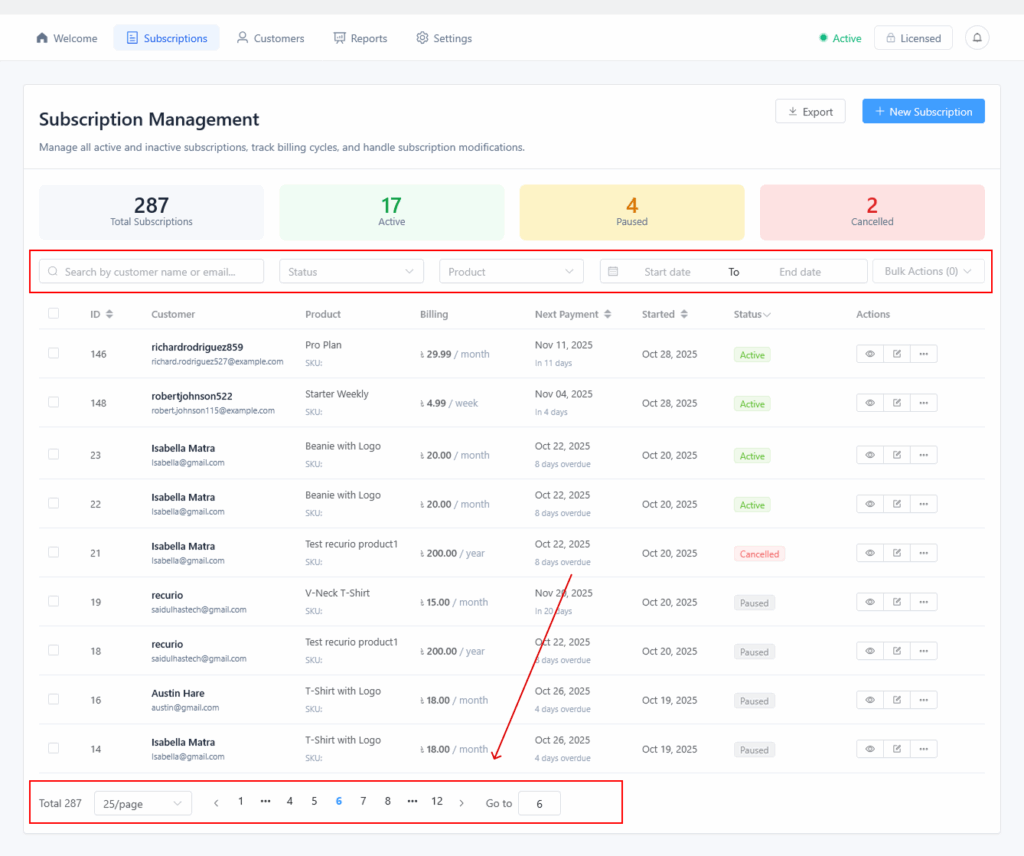
Search by:
- Customer name or email
- Product name
- Subscription ID
Filter by:
- Status: Active, Paused, Cancelled, etc.
- Product: Specific product
- Date Range: Created between dates
Sort by:
- Created date (newest/oldest)
- Next payment date
- Billing amount
Pagination
- Rows per page: 10, 25, 50, 100
- Navigation: First, Previous, Next, Last page
Creating Manual Subscriptions
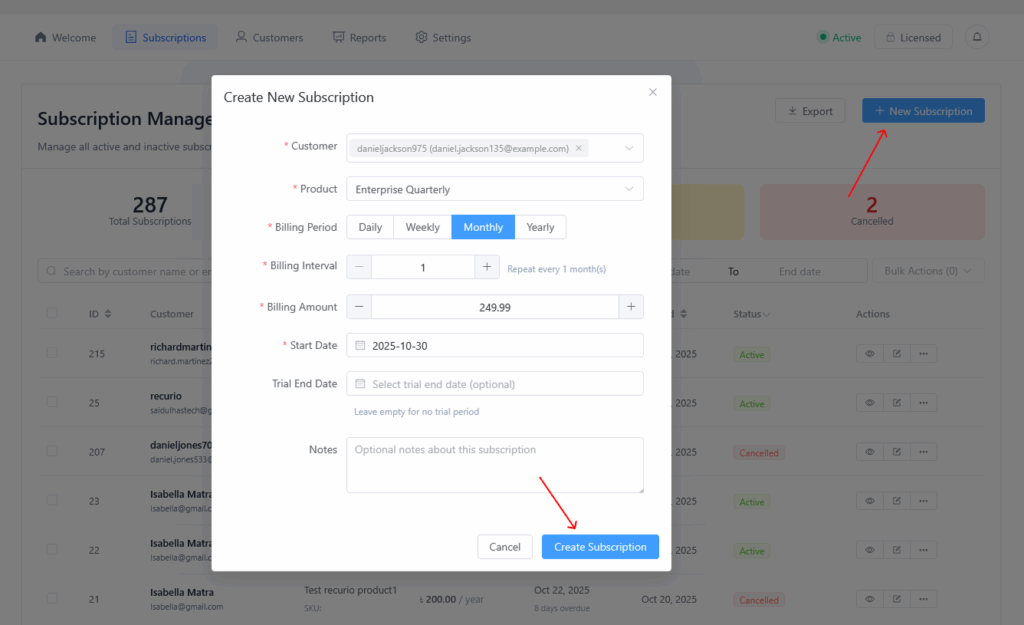
You can create subscriptions manually (without customer purchase):
- Click Add New Subscription button
- Select Customer – Search by name or email
- Select Product – Choose subscription product
- Configure Billing:
- Period (monthly, yearly, etc.)
- Interval (every X periods)
- Amount (can override product price)
- Optional Settings:
- Trial end date
- Next payment date
- Payment method
- Save Subscription
Use Cases:
- Grandfathering customers at special rates
- Complimentary subscriptions for VIPs
- Migrating from another system
- Testing subscription workflows
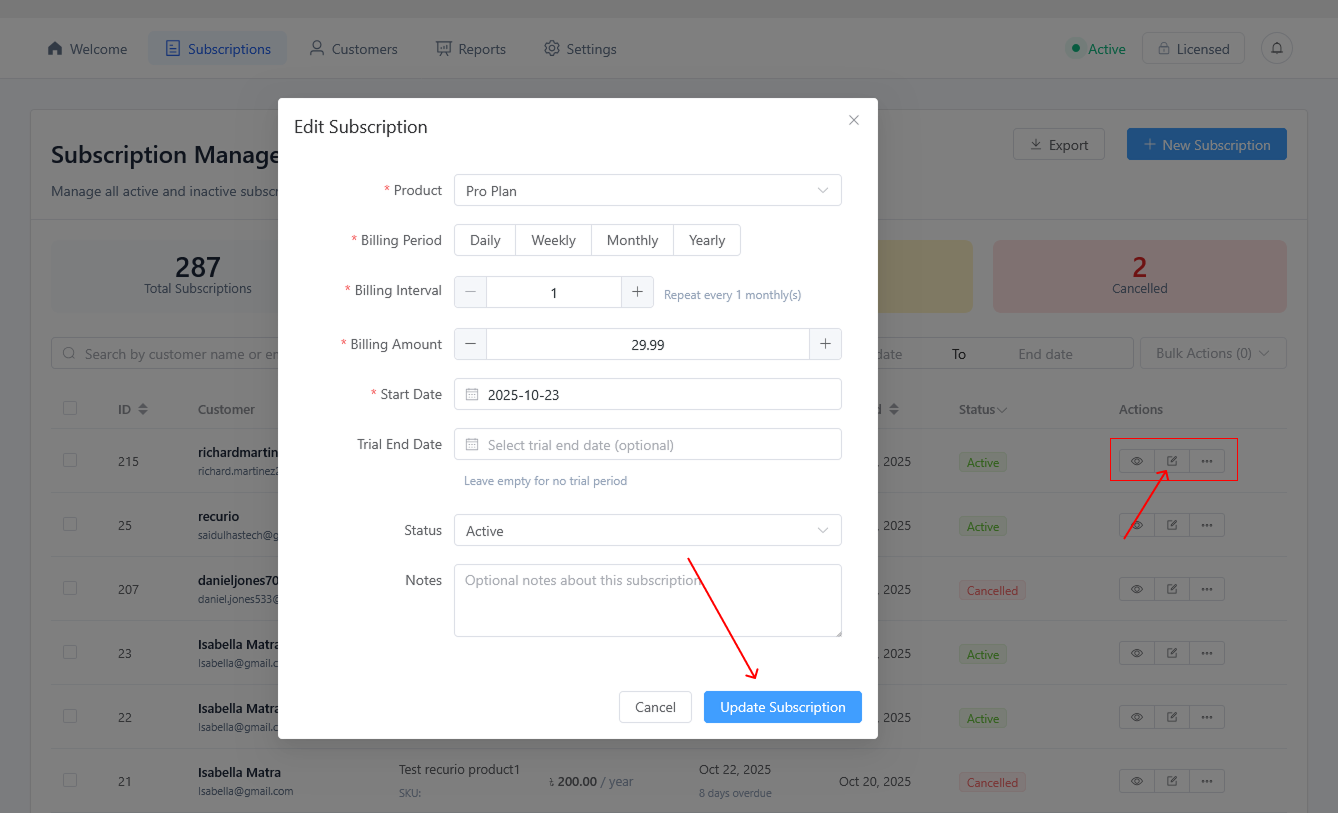
Editing Subscriptions
- Click View on any subscription
- Click Edit button
- Editable Fields:
- Billing amount
- Next payment date
- Billing/shipping addresses
- Payment method
- Status
- Save Changes
⚠️ Important: Changing billing amount only affects future payments, not the current cycle.
Subscription Actions
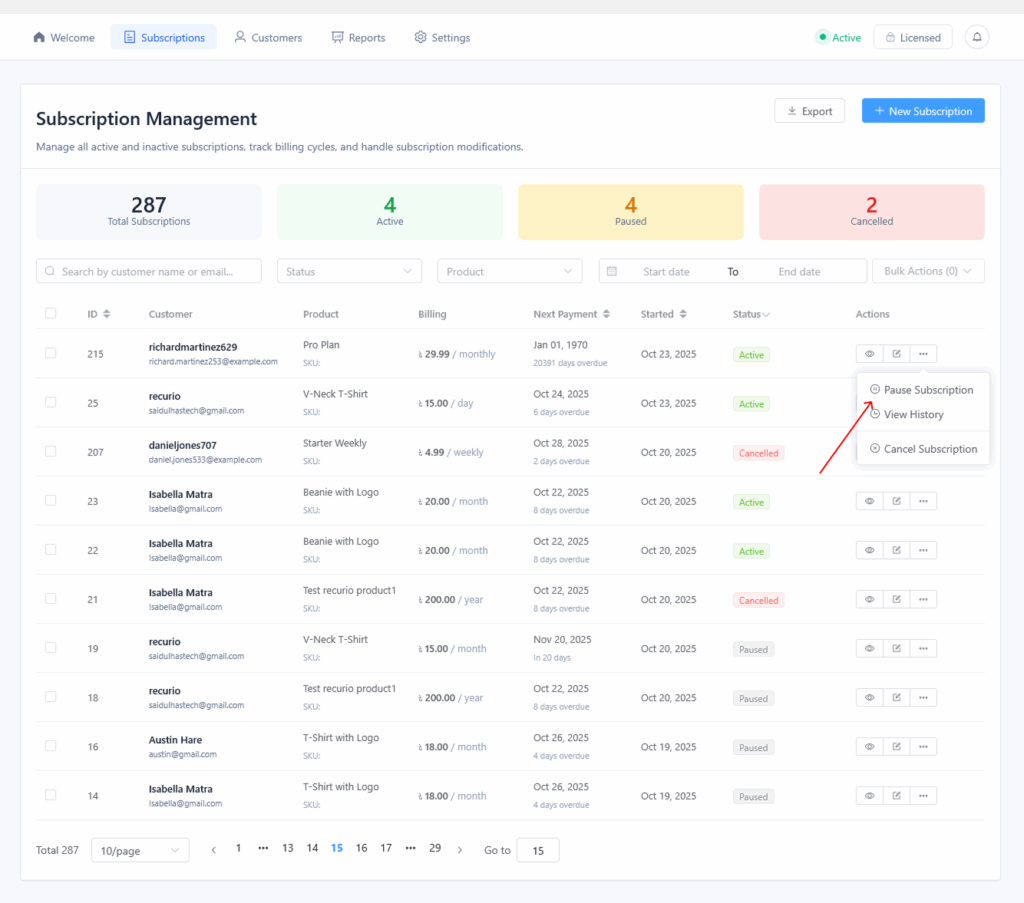
Pause Subscription
Temporarily suspend a subscription:
- In the subscription list, click Pause
- Confirm the pause action
What Happens:
- Status changes to “Paused”
- No charges while paused
- Next payment date recalculates when resumed
- Customer receives pause confirmation email
Use Cases:
- Customer requests temporary hold
- Seasonal businesses (gym summer break)
- Customer traveling or away
Resume Subscription
Reactivate a paused subscription:
- Click Resume on paused subscription
- Confirm action
What Happens:
- Status changes to “Active”
- Next payment date calculated from resume date
- Regular billing cycle resumes
- Customer receives resume confirmation email
Cancel Subscription
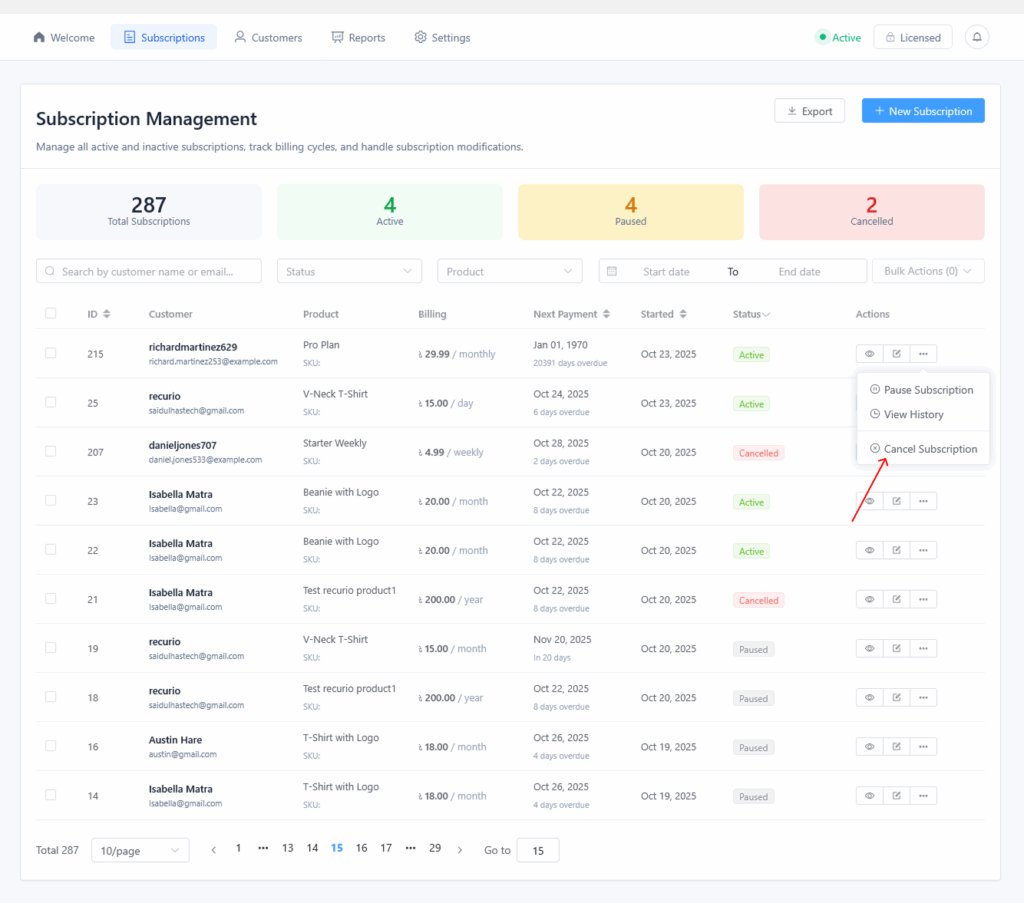
Permanently end a subscription:
- Click Cancel on subscription
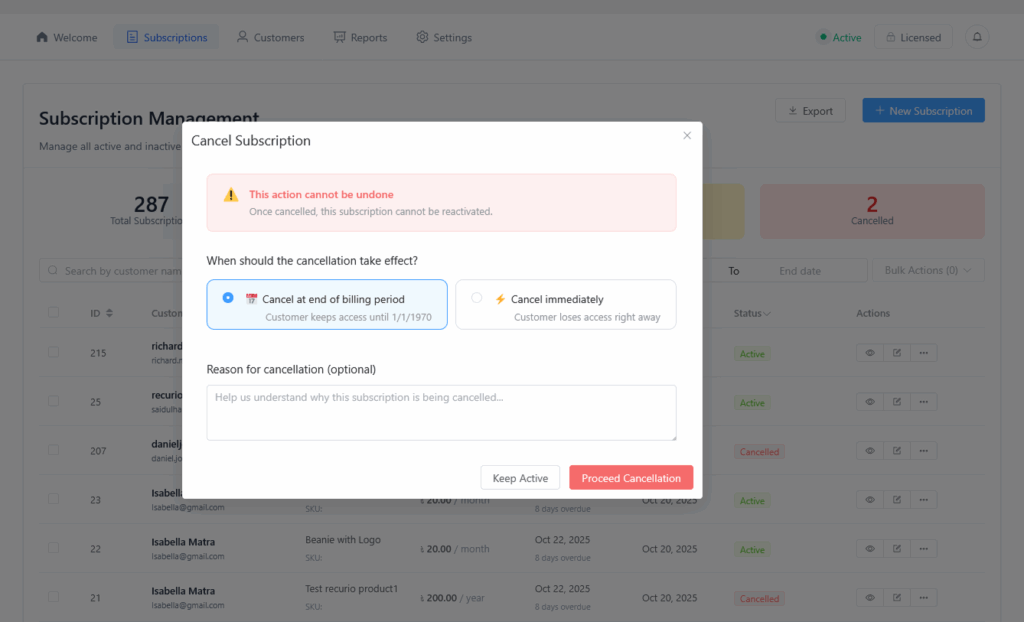
- Choose cancellation timing:
- Immediately – Cancels now
- End of Period – Cancels after current cycle expires
- Optional: Add cancellation reason
- Confirm cancellation
What Happens:
- Status changes to “Cancelled” or “Pending Cancellation”
- No future charges
- Customer receives cancellation confirmation email
- Note: Cancelled subscriptions cannot be resumed
⚠️ Important: Cancellation is permanent. Customers must purchase a new subscription to reactivate.
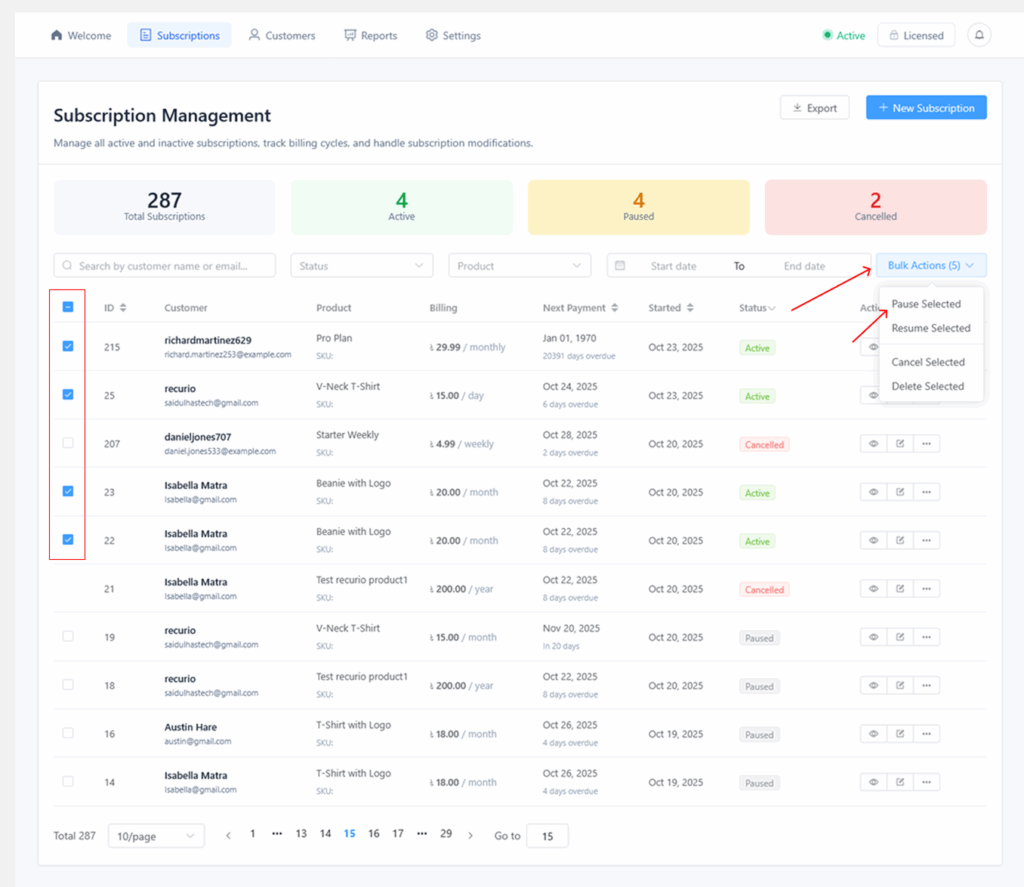
Bulk Operations
Manage multiple subscriptions at once:
- Select Subscriptions:
- Check boxes next to subscriptions OR
- Click “Select All” to select all on current page
- Choose Action:
- Pause selected
- Resume selected
- Cancel selected
- Delete selected
- Confirm Action
Bulk actions save significant time when managing seasonal changes or cleanup operations.
Viewing Subscription Details
Click View on any subscription to see:
Overview Tab
- Subscription ID
- Customer information
- Product details
- Current status
- Billing details (amount, period, interval)
- Payment method
- Trial information
- Next payment date
- Renewal count
- Failed payment count (if any)
Payment History
Complete transaction log:
- Date and time
- Amount charged
- Payment method used
- Transaction ID
- Status (Success/Failed)
- Gateway response
Event History
Chronological audit trail:
- Subscription created
- Status changes (paused, resumed, cancelled)
- Payment events (processed, failed, recorded)
- Address updates
- Payment method changes
- System events
Useful for:
- Customer support inquiries
- Debugging billing issues
- Compliance and auditing
- Understanding customer behavior